Online HR System for Leave, Expenses, Document Requests & Directory
Online leave management that keeps leave, expense claims, HR letter requests and the staff directory in one place.
Try the demoLeave
Approvals and follow-up
Expense claimsSwitch on later
Document requests to HRSwitch on later
Directory and settings
Reports and security
HR Check requests a head has approved, chase the ones that are stuck, and look after the directory, balances, holidays and leave policy. HR also prepares the letters people ask for and can file on someone's behalf. Six groups. Expense claims and document requests are the parts you can switch on later. Choose a role to see who uses which function, and tap a function to read more.
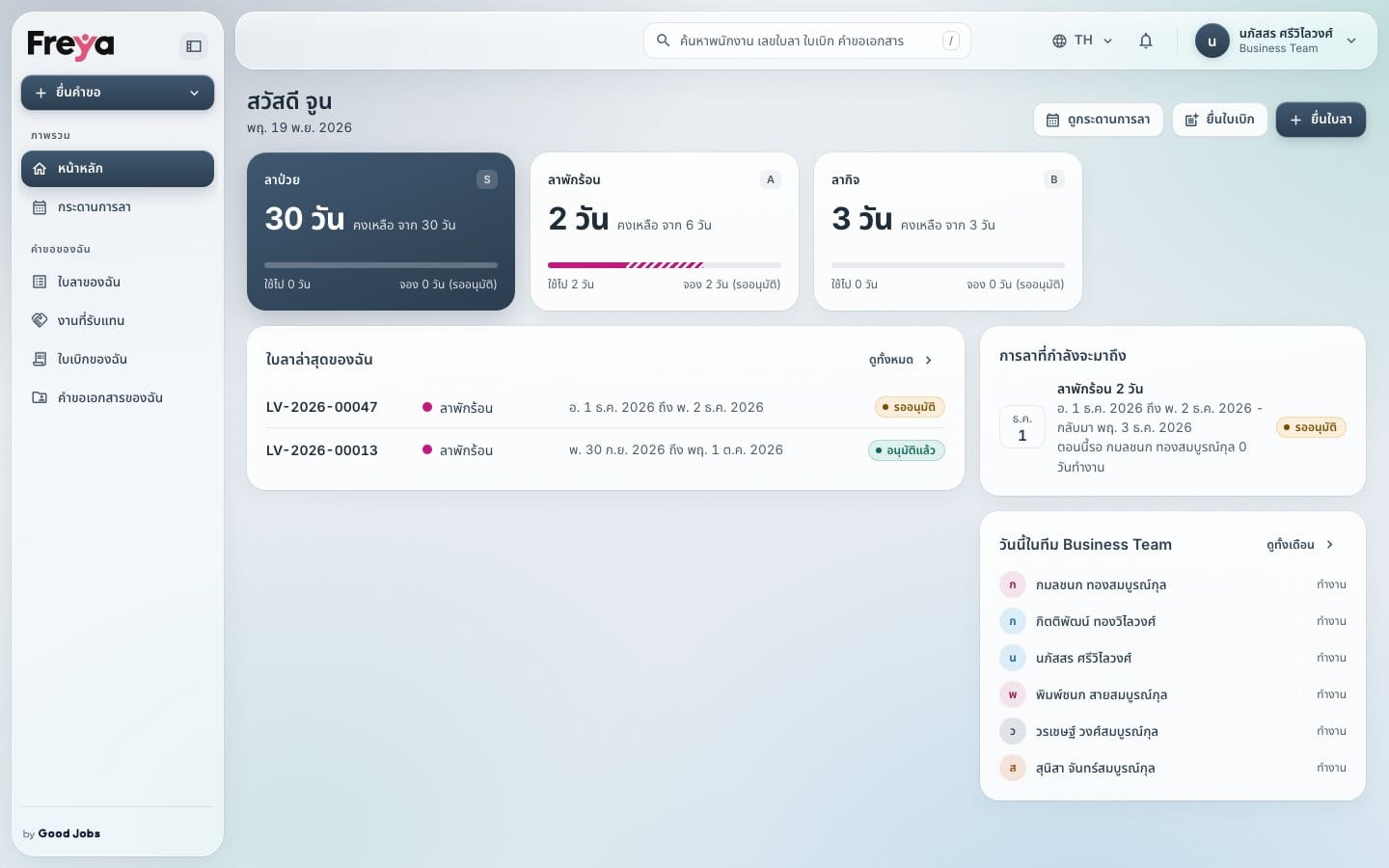
Staff request leave from a phone or a computer, heads approve straight from the email, and HR checks it after them. Balances are worked out for you, and the leave board shows who is off today. When you are ready, switch on expense claims and HR letter requests in the same system. Leave types, quotas and holidays are set by HR to match your own policy.
Freya can be installed on your own server, or used at freya.goodjobs.cloud, which GoodJobs runs for customer companies. Employees sign in with their Google or LINE account. How Freya collects and uses personal data, including data from Google, is set out in our privacy policy. Read the privacy policy
Who uses which part
Everyone works in the same system, and each person only sees the part that is their job.
Employees
Request leave, check what is left, claim expenses with a photo of the receipt, and ask HR for letters. Every request shows who it is waiting on.
Uses:
- request leave
- my leave
- new claim
- request a document
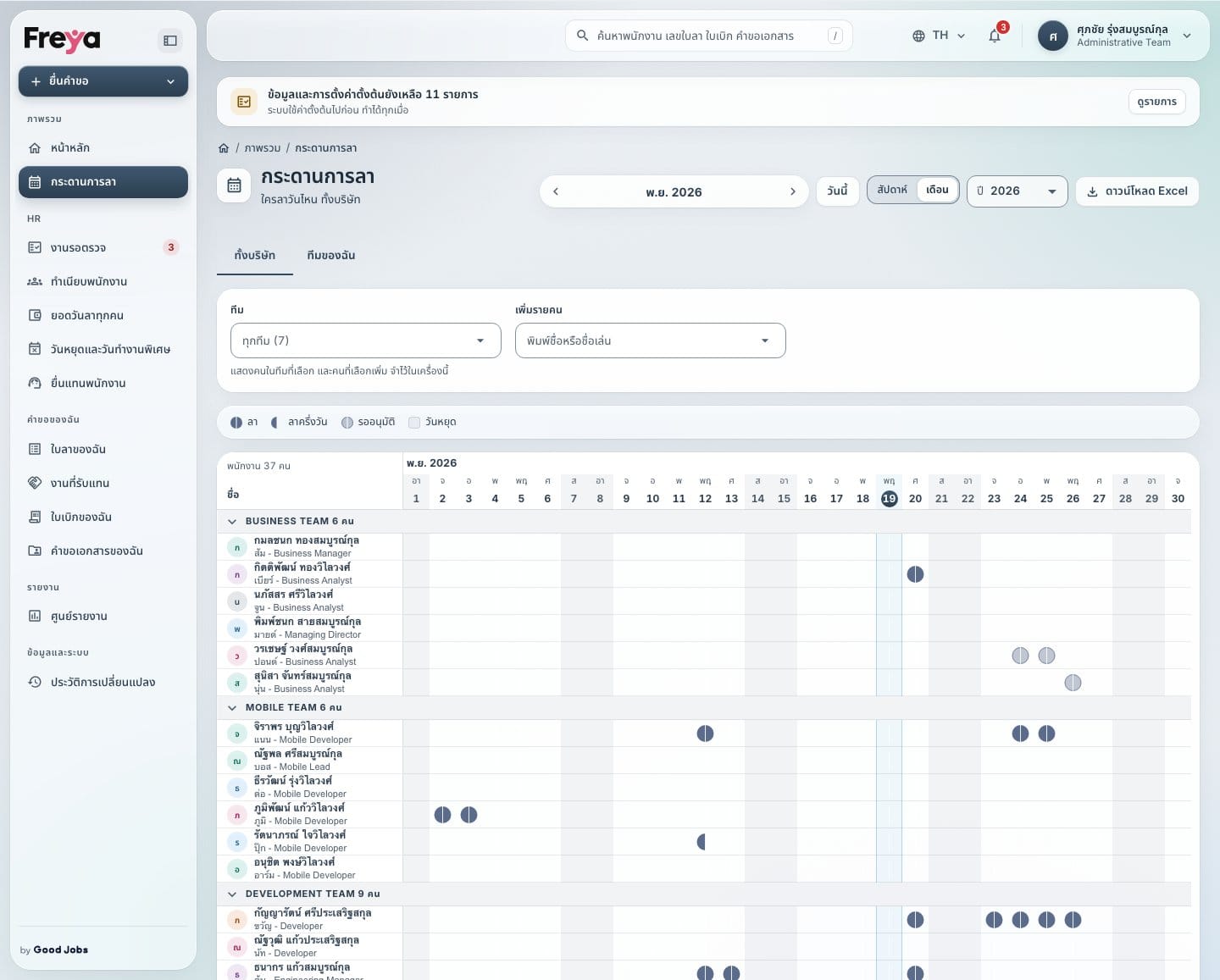
- leave board
Heads and second approvers
Approve leave and expense claims for their team from the approval inbox or from the email. They see the balance and the notice given before deciding, and the "My team" tab shows who is off this week.
Uses:
- approval inbox
- claim approvals
- leave board
HR
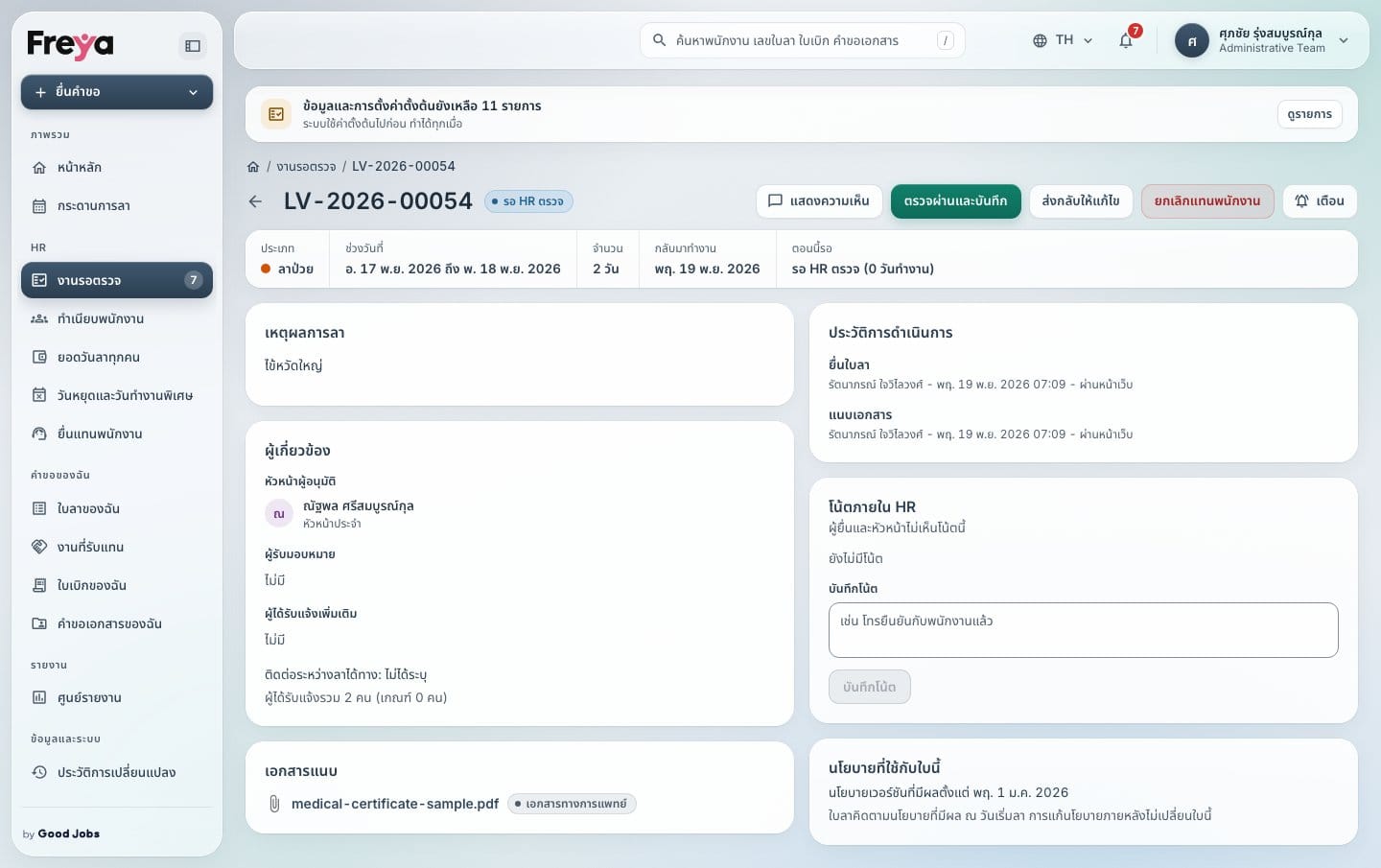
Check requests a head has approved, chase the ones that are stuck, and look after the directory, balances, holidays and leave policy. HR also prepares the letters people ask for and can file on someone's behalf.
Uses:
- check queue
- pending requests
- balances
- directory
- document desk
- reports
Accounts
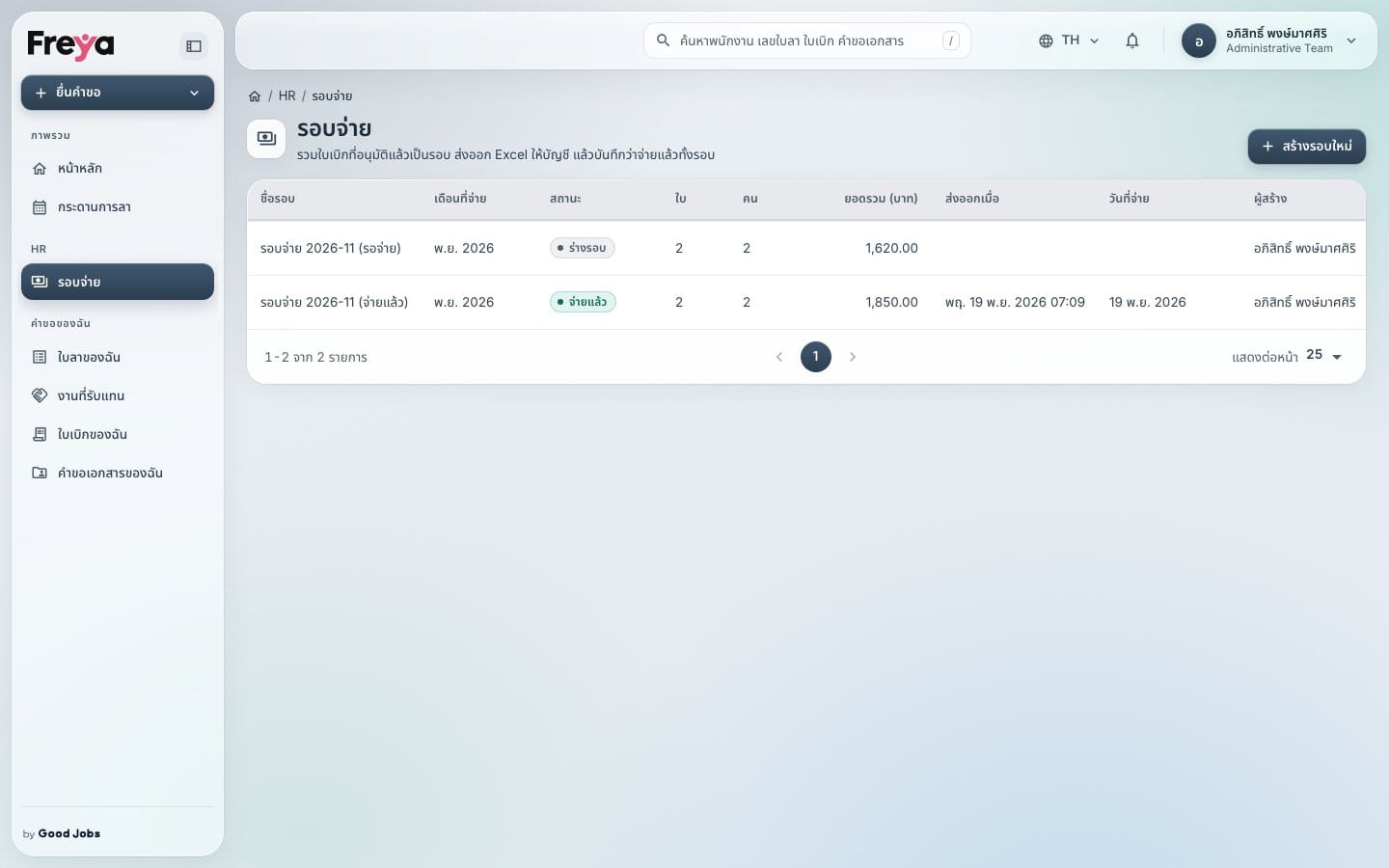
Check claims, group approved ones into a payout round, export it to Excel to make the transfers, then mark the round paid.
Uses:
- claim check queue
- payout rounds
- expense reports
Executives
See leave and total spend across the company without asking HR for a report.
Uses:
- executive dashboard
System admins
Decide who can do what, set how long data is kept, and switch the expense and document parts on or off.
Uses:
- access
- data retention
- settings
Leave and the staff directory work from day one. Expense claims and document requests are switched on when you are ready.
Why Freya
What goes away
- Chasing a leave request through chat. Every request shows who it is waiting on.
- HR counting leave balances in a spreadsheet.
- Heads needing a computer to approve. The email works on a phone.
- Asking around who is off today. The board shows it on one page.
- The cover person finding out last. They get an email when the request is filed.
- Receipts collected in chat or in envelopes.
- Remembering whether a receipt was already claimed. The system flags possible repeats.
- Retyping the refund list for the bank. Export it from the payout round.
- Answering certificate requests one chat message at a time, and emailing payslip files around.
- Working out carried-over leave by hand at year end.
You always know who has the ball.
Leave, claims and document requests show their status and the name of the next person to act, and anything stuck gets a reminder.
Balances you can trust and trace.
Leave is counted from each person's real working hours, and every change is kept in a history nobody can edit.
Your rules, set by HR.
Leave types, quotas, holidays, expense types and document types are all settings, not code changes.
How it works
Leave
- Requestpick dates and a cover
- Approvethe head, from email or the app
- CheckHR checks and records
- Boardthe balance updates itself
Expense claims
- Snapthe receipt on your phone
- Sendsee the limit left first
- Approvethe head, then HR or accounts
- Payaccounts pay by round
Document requests
- Askpick the document type
- TakeHR sees it straight away
- AttachHR adds the PDF
- Downloadinside the system
Getting started
- Importthe directory from Excel
- Set upleave types and holidays, with defaults
- Invitestaff sign in with Google or LINE
- Gofile the first request
Step by step
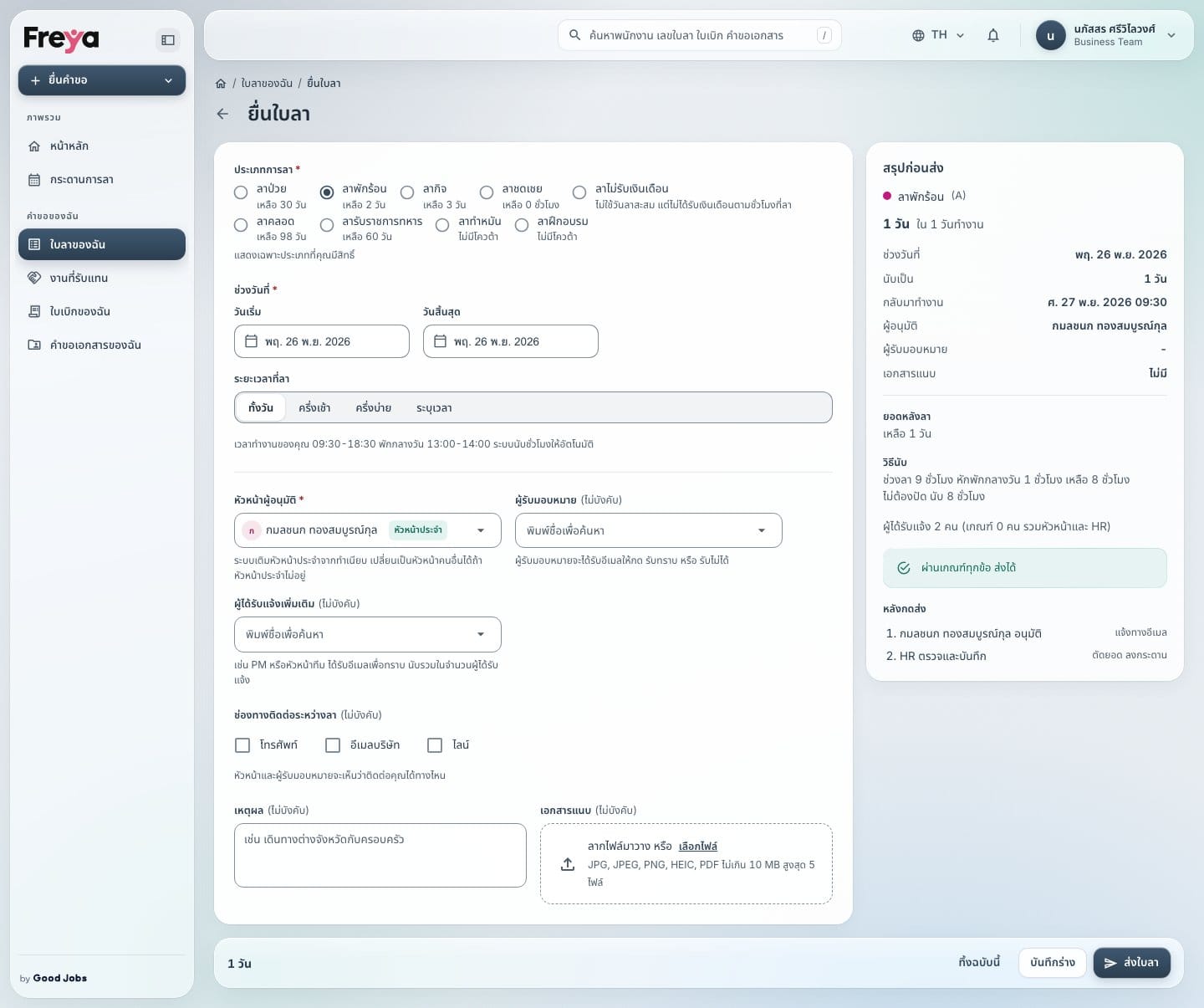
Request leave
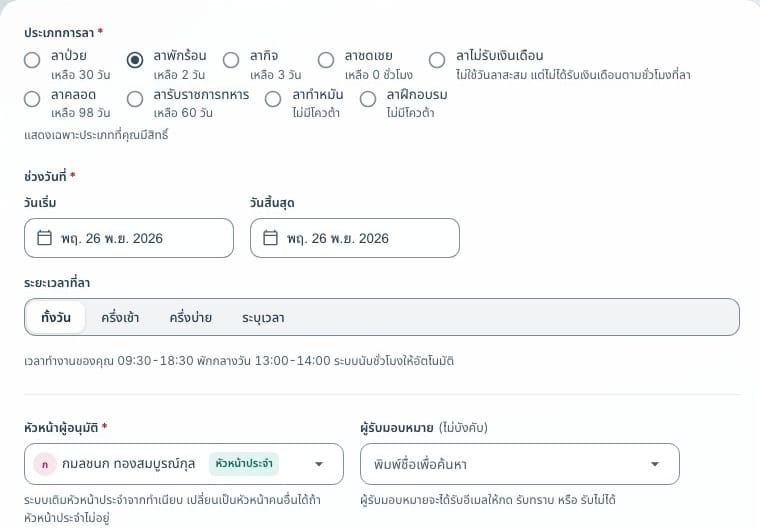
- The employee presses "New request" and picks leave.
- Choose the leave type, the dates, and full day, morning, afternoon or set hours. The hours are worked out from that person's working hours.
- Pick who covers the work from the directory, and add anyone else who should know (optional).
- For sick leave that needs a medical certificate, attach it now or later.
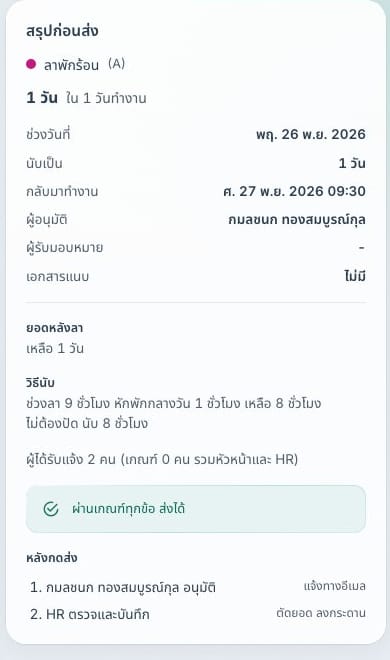
- Check the summary: the balance afterwards and who the request will go to, in order.
- Send. The employee gets a confirmation, the head gets an approval email, and the cover person gets an email asking them to confirm.
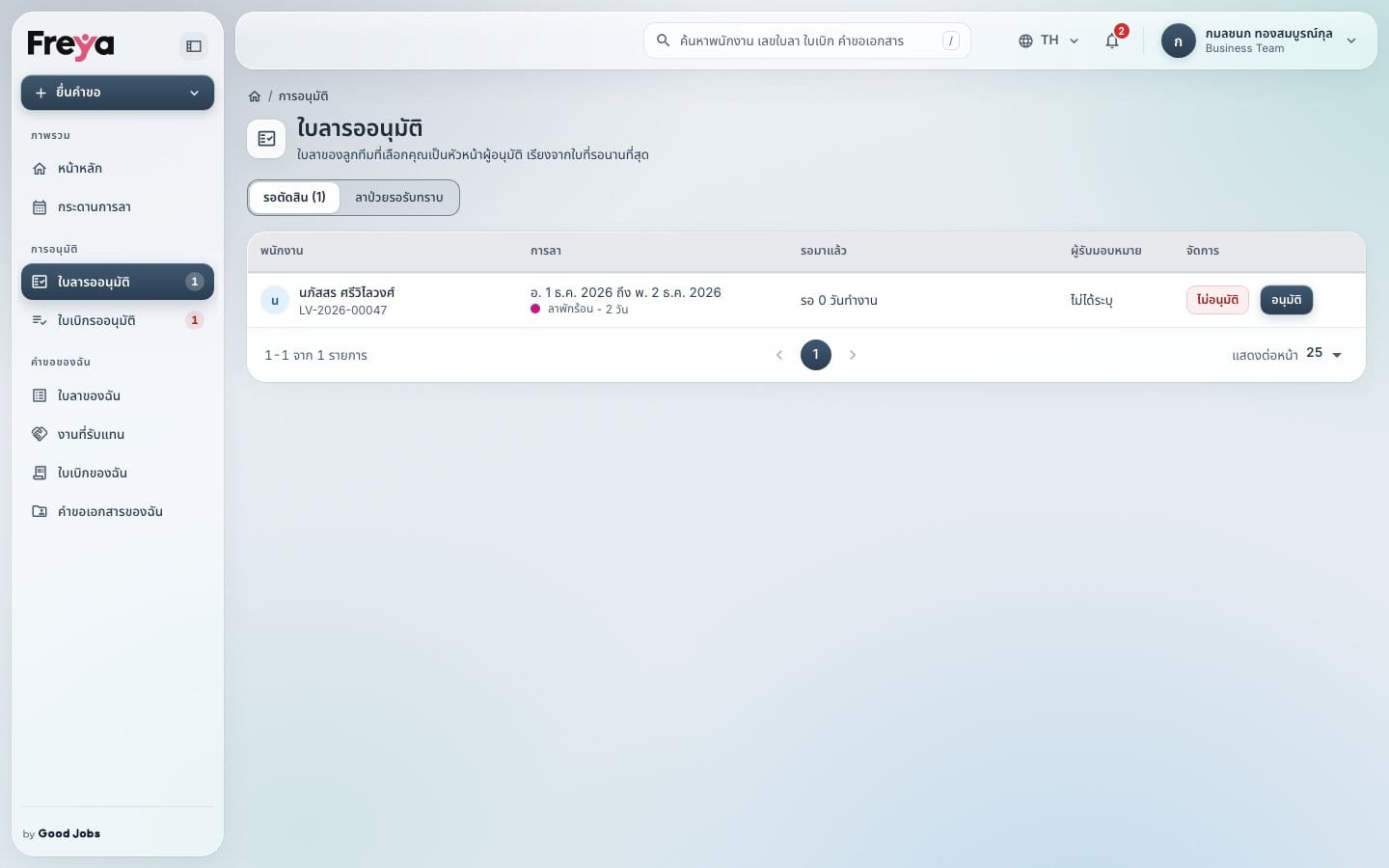
Approve leave
- The head opens the email or the approval inbox.
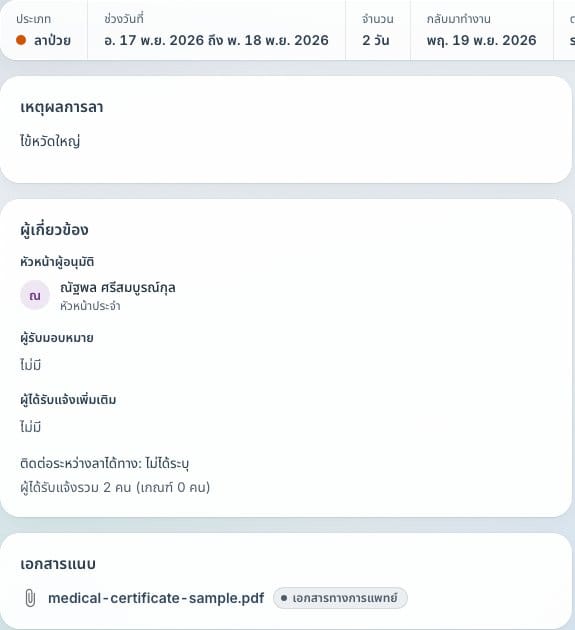
- They see the dates, the type, the balance left and how much notice was given.
- Approve, decline or send it back for changes.
- If the employee has a second approver, it goes to them next.
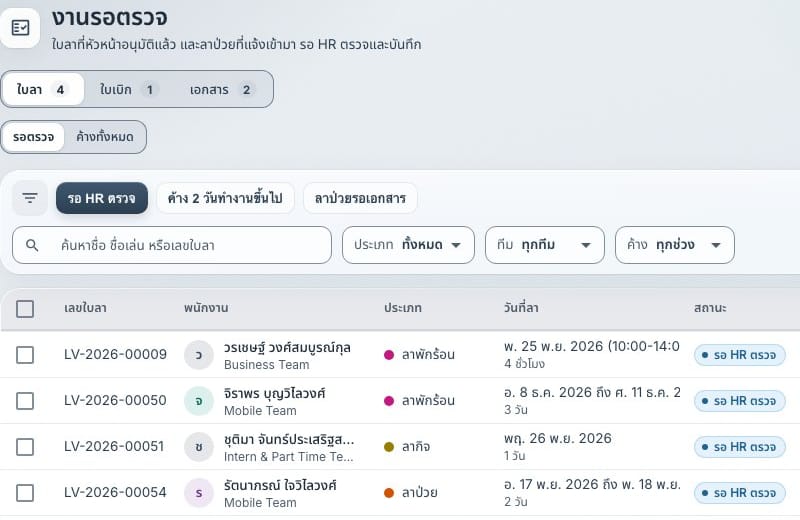
- The request reaches the HR check queue, and HR checks and records it.
- The balance updates at once, the leave appears on the board, and everyone involved gets an email that it is approved.
Sick leave: by default the head gets an email for information and the request goes straight to HR. A company can make the head approve it first.

Change approved leave
- The employee opens the original request and asks to change it.
- They edit the dates or times and send.
- The head reviews it, then HR checks it.
- Once approved, the balance is adjusted, and the cover person and anyone notified get an email about the new dates.
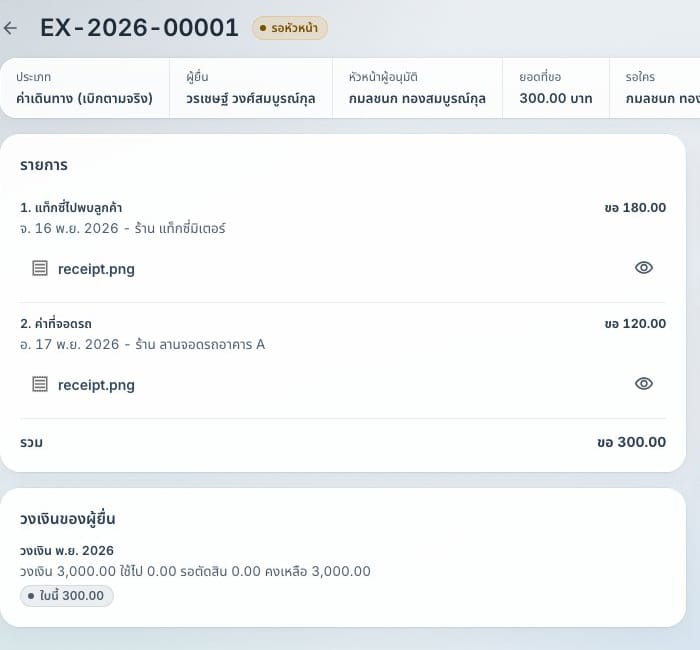
Claim expenses
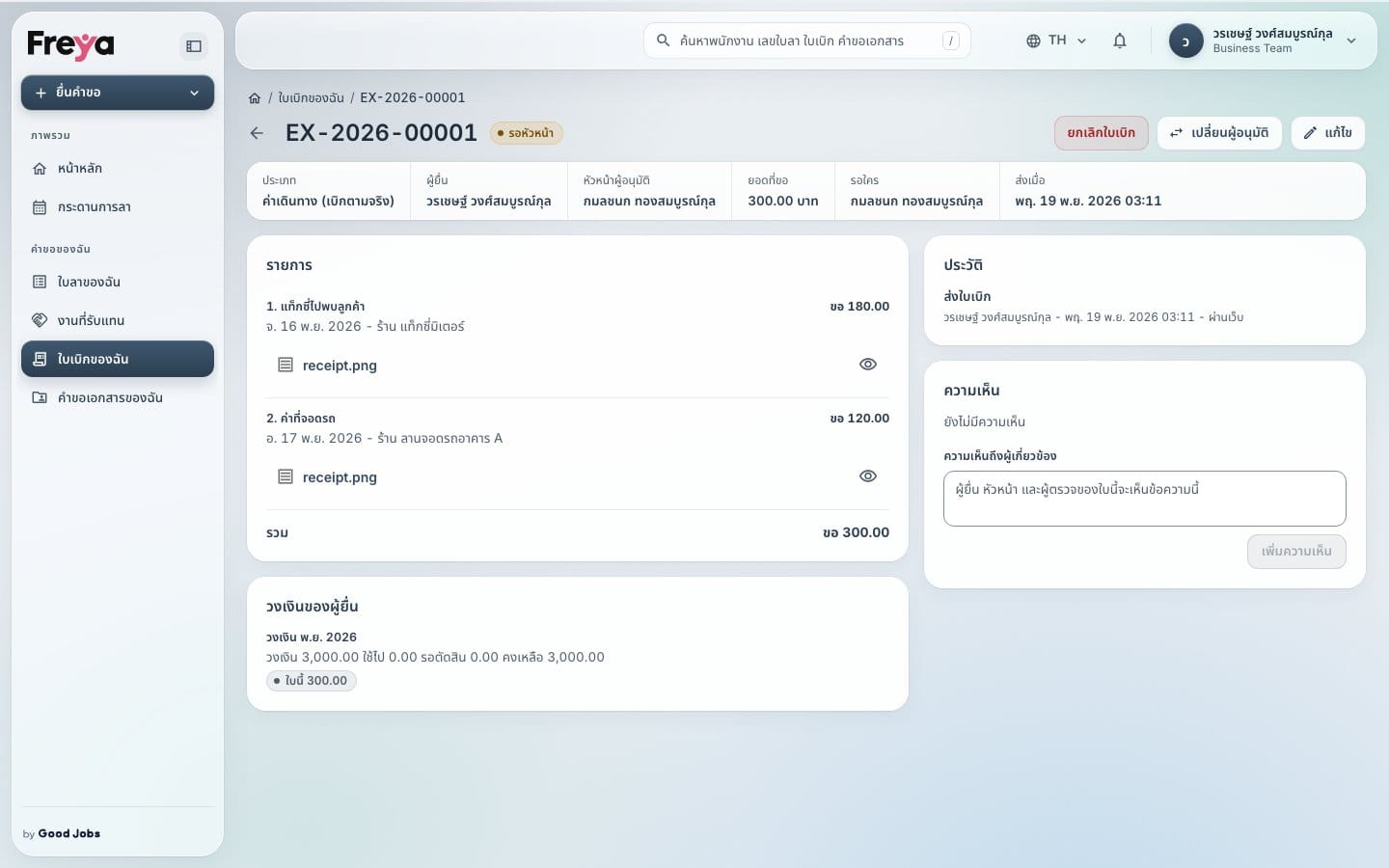
- The employee picks the expense type. The system shows what is left of this month's limit and fills in the approving head.
- Add one item per receipt, with a file or a phone photo. One claim can hold several items.
- If it goes over the limit, the system says so before sending.
- The head gets an approval email and can approve from it.
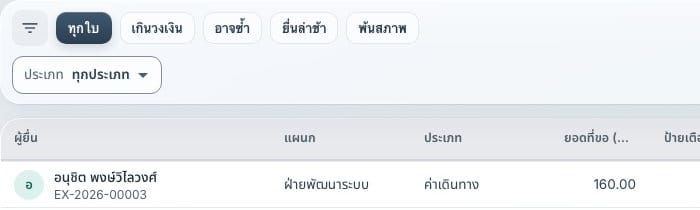
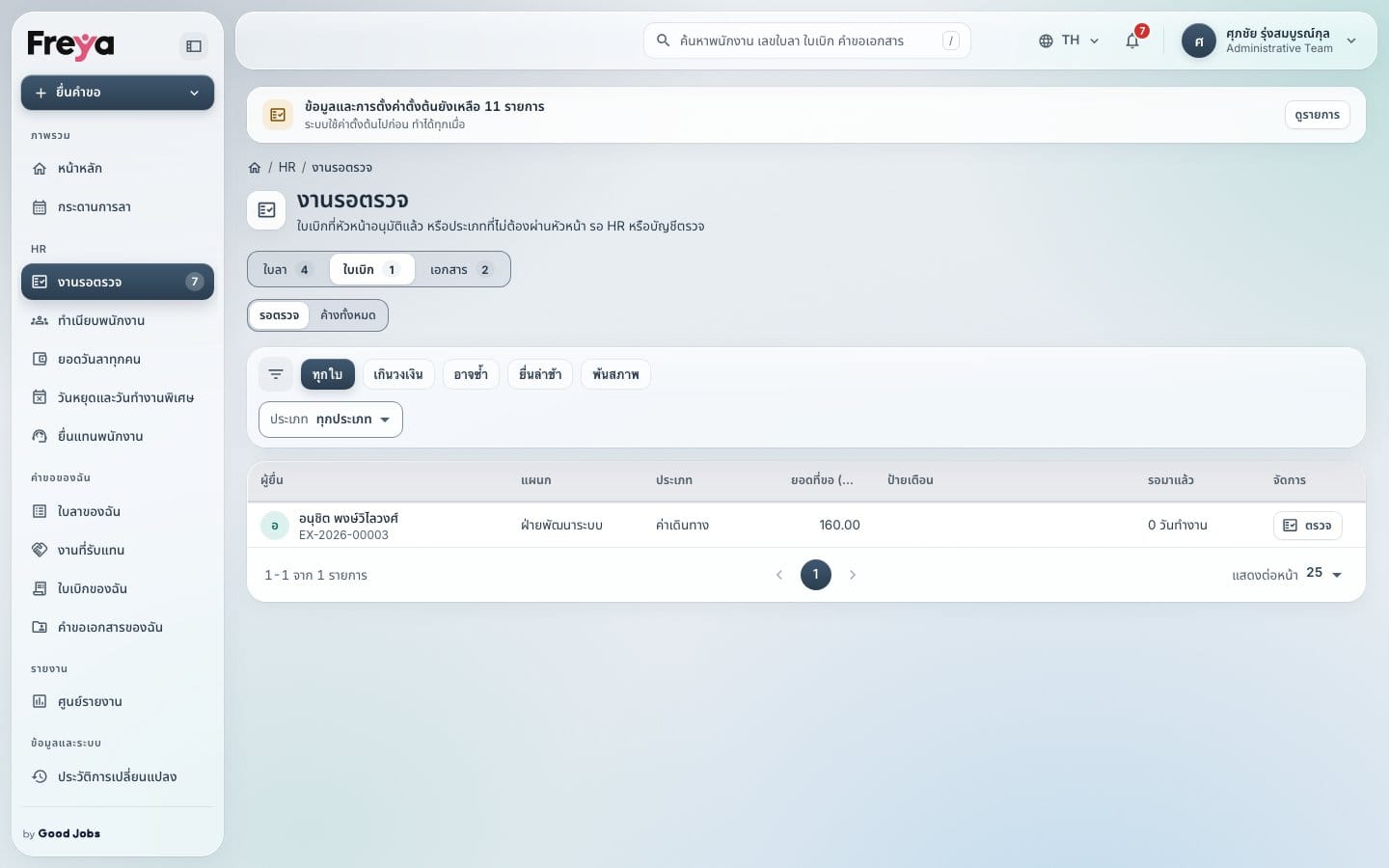
- The claim moves on to a reviewer in HR or accounts, who sees any over-limit, possible-repeat or late flags and approves the whole claim or item by item.
- The employee gets an email that the claim is approved.
Pay claims by round
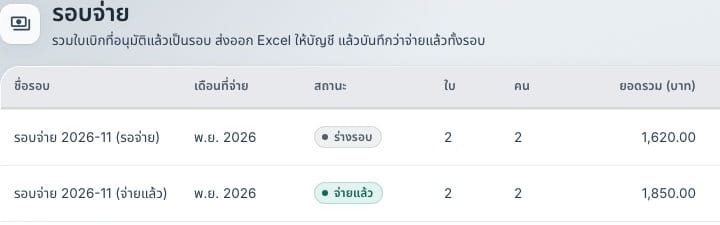
- Accounts create a payout round and add approved claims to it.
- Monthly allowances the system raised can go into the same round.
- Export it to Excel for the transfers.
- When the money has gone out, mark the whole round paid.
- Everyone in the round gets an email that they have been paid.
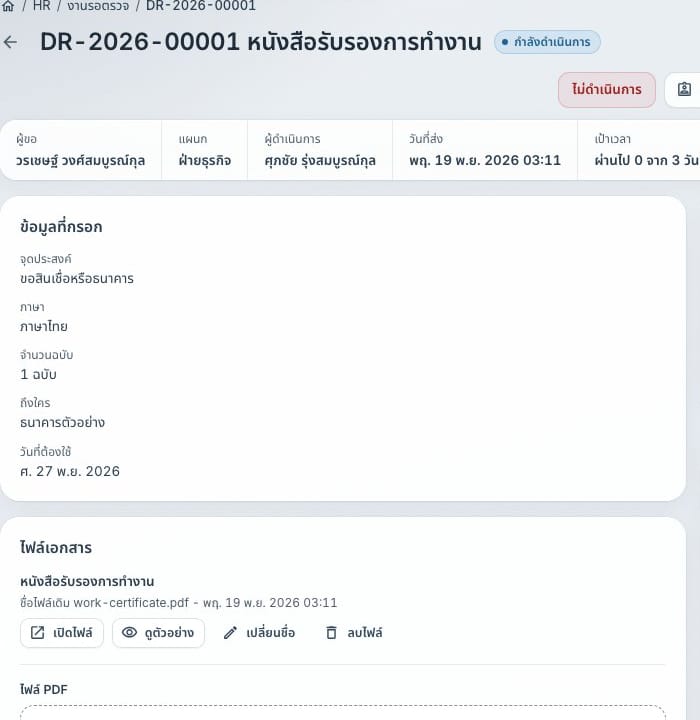
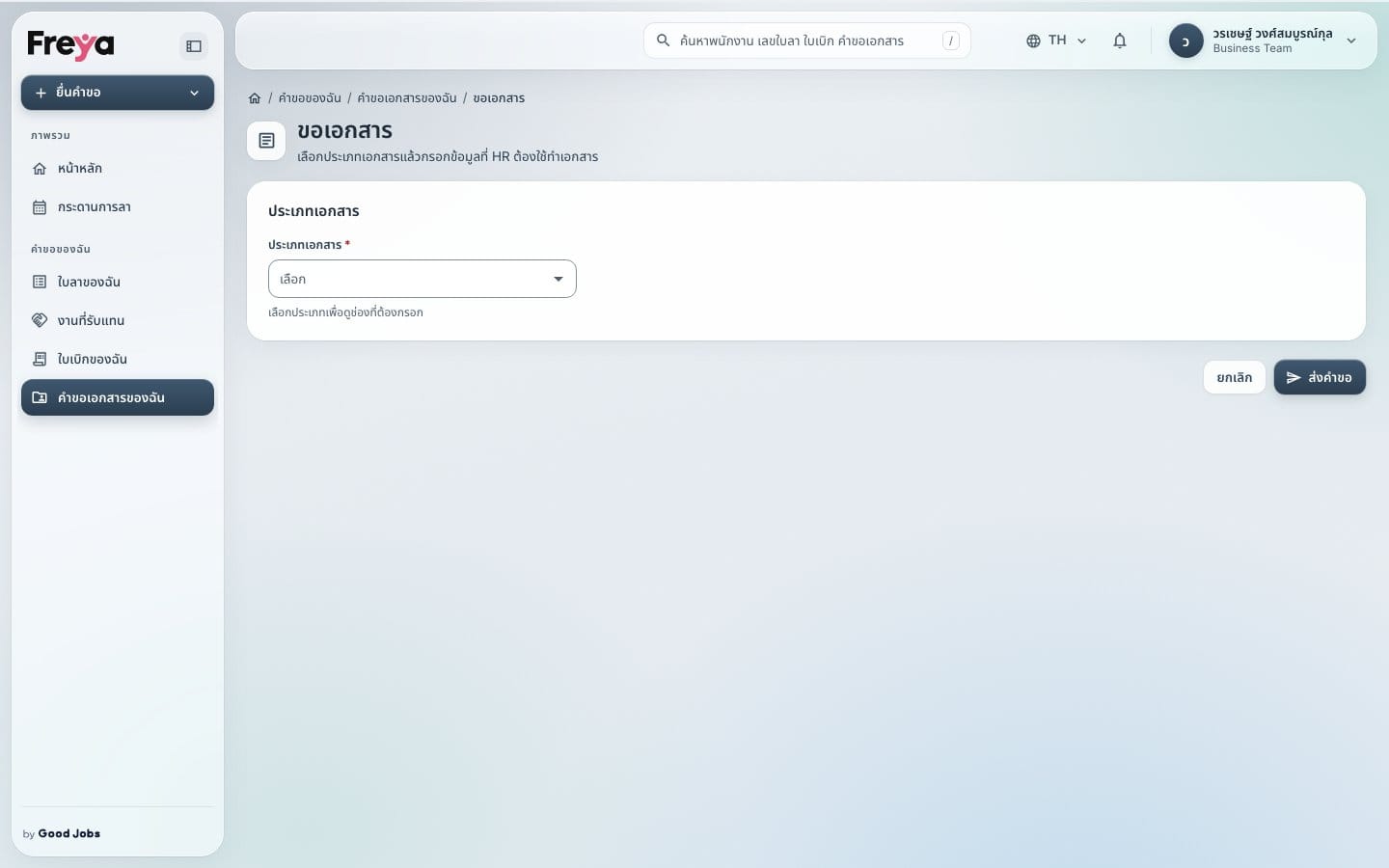
Ask HR for a document
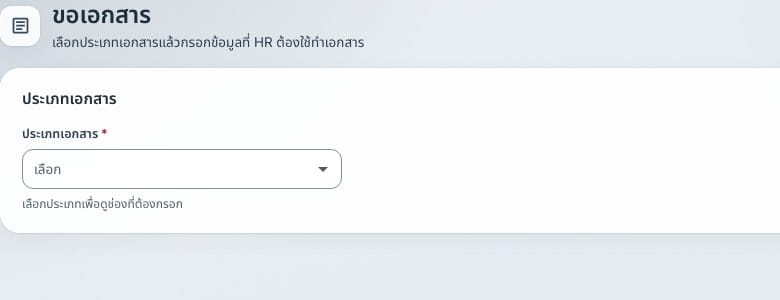
- The employee picks a document type, for example a salary certificate.
- Fill in what HR needs, give the date it is needed by, and ask for a paper copy if wanted.
- The request goes straight to HR and the employee gets a confirmation.
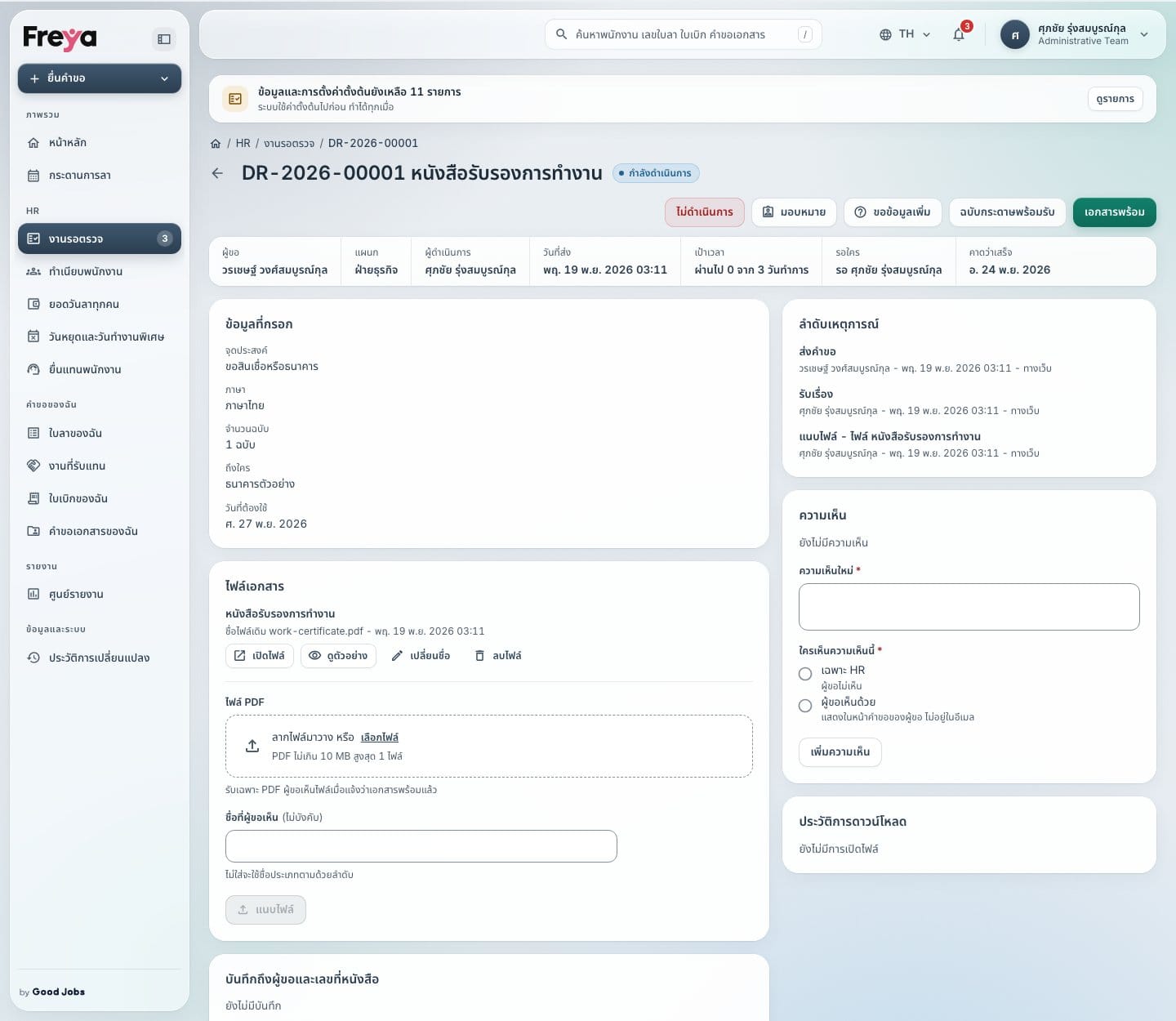
- HR takes the request. If details are missing, HR asks for them and the employee gets an email to reply.
- HR attaches the PDF. The employee gets an email that it is ready and downloads it in the system.
- If a paper copy was asked for, HR marks it ready to collect.
Close the leave year
- HR opens year-end carry-over.
- Preview what each person carries over and what is forfeited.
- Confirm, and the carried days are added for everyone.
- If something is wrong, roll it back, up until someone uses the carried days.
Notifications and back office
Emails each person receives
Employees
- Your leave request was sent
- Your head approved it, and your leave is approved
- Your leave was declined or sent back for changes
- Your cover confirmed, or said they cannot cover
- There is a new comment on your request
- HR adjusted your leave balance
- Your claim is approved, and this round has been paid
- HR needs more details for your document request
- Your document is ready to download, your paper copy is ready, and the download is about to expire
Heads
- An approval request, with approve and decline buttons in the email
- A sick leave notice for someone on the team
- An expense claim to approve
- A request to change leave that was already approved
- A reminder when something is still waiting on you
Second approvers
- An approval request (second step) after the head has approved
Cover people
- A request to cover during someone's leave
- Confirmation of the cover dates once the leave is approved
- Notice that the cover dates changed, or that cover is no longer needed
People notified
- Who will be off, and when
- A note when that leave changes dates or is cancelled
HR
- Leave waiting for the HR check
- Leave that has been waiting too long
- Sick leave with an overdue attachment
- New claims in the check queue
- A new document request, extra details sent by the requester, and a summary of requests still open
Everyone
- Emails that need you to act are sent at once. FYI emails can be rolled into one daily summary at 17:30.
- Inside the app, the menu counts and the bell show how many things are waiting on you.
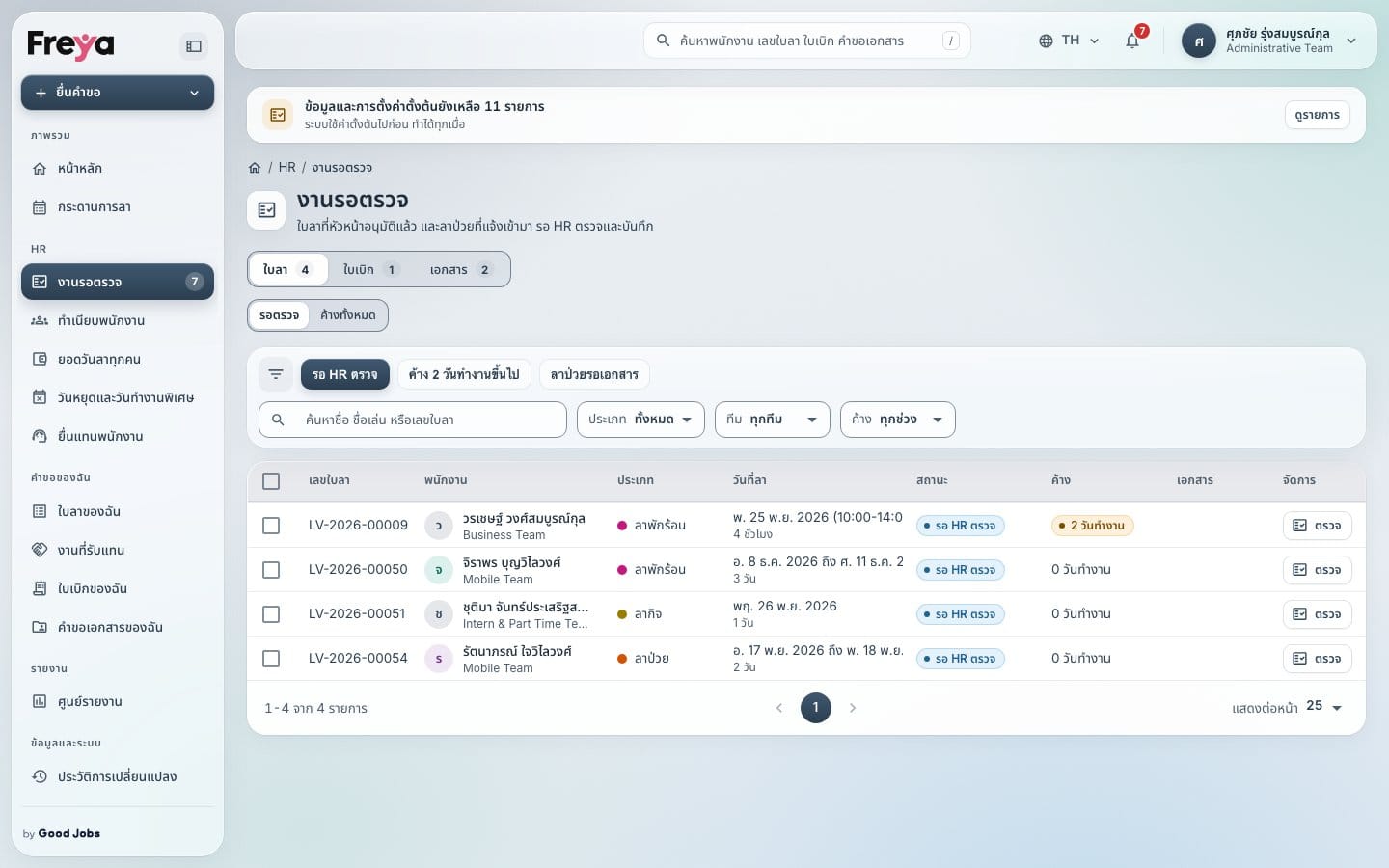
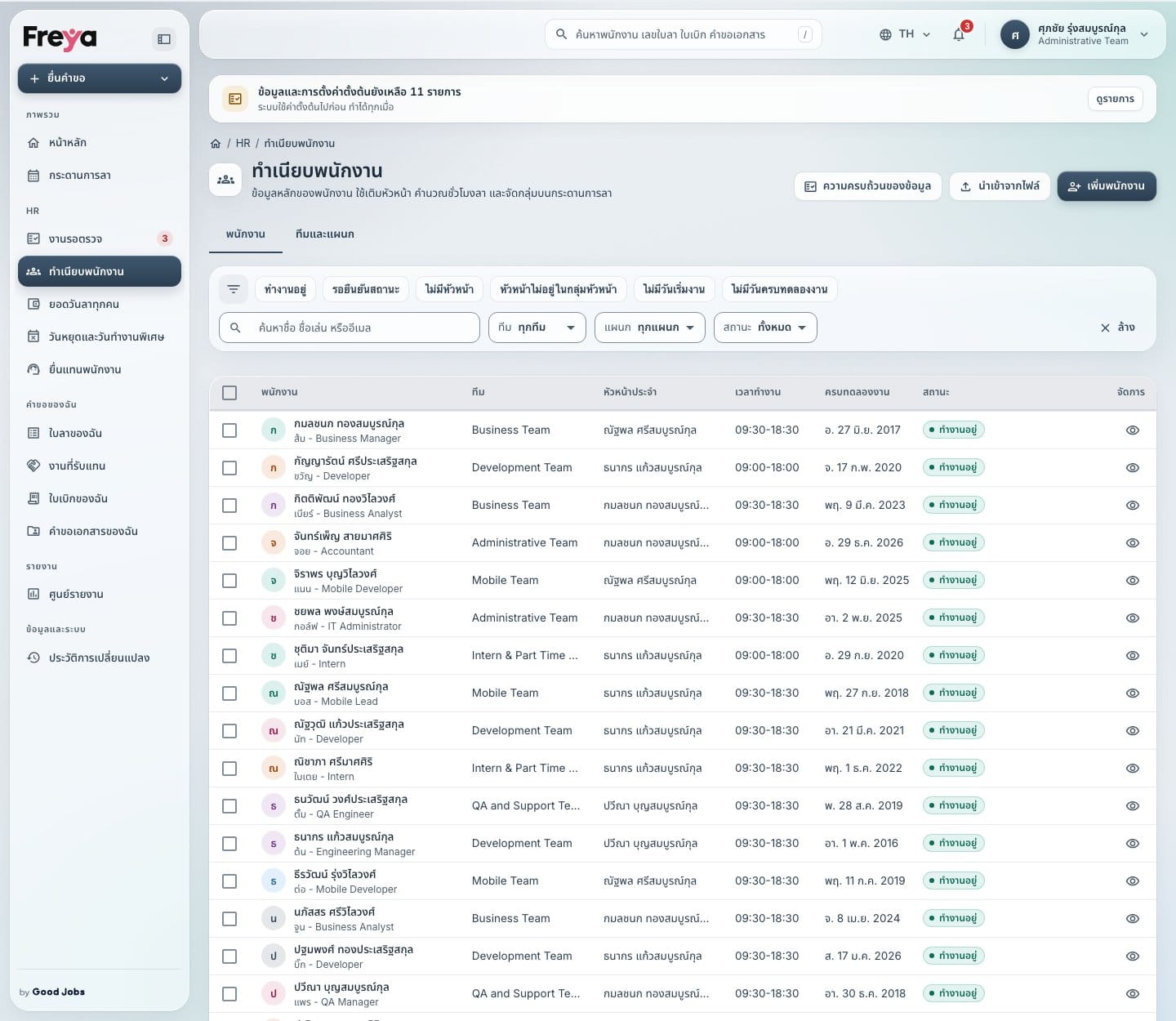
What HR sees in the back office
- The leave check queue, split into waiting for check and everything still open
- Pending requests, longest wait first, with a button to send a reminder
- Everyone's balance, with a per-person view and adjustments with a reason
- The staff directory, filtered by records missing something
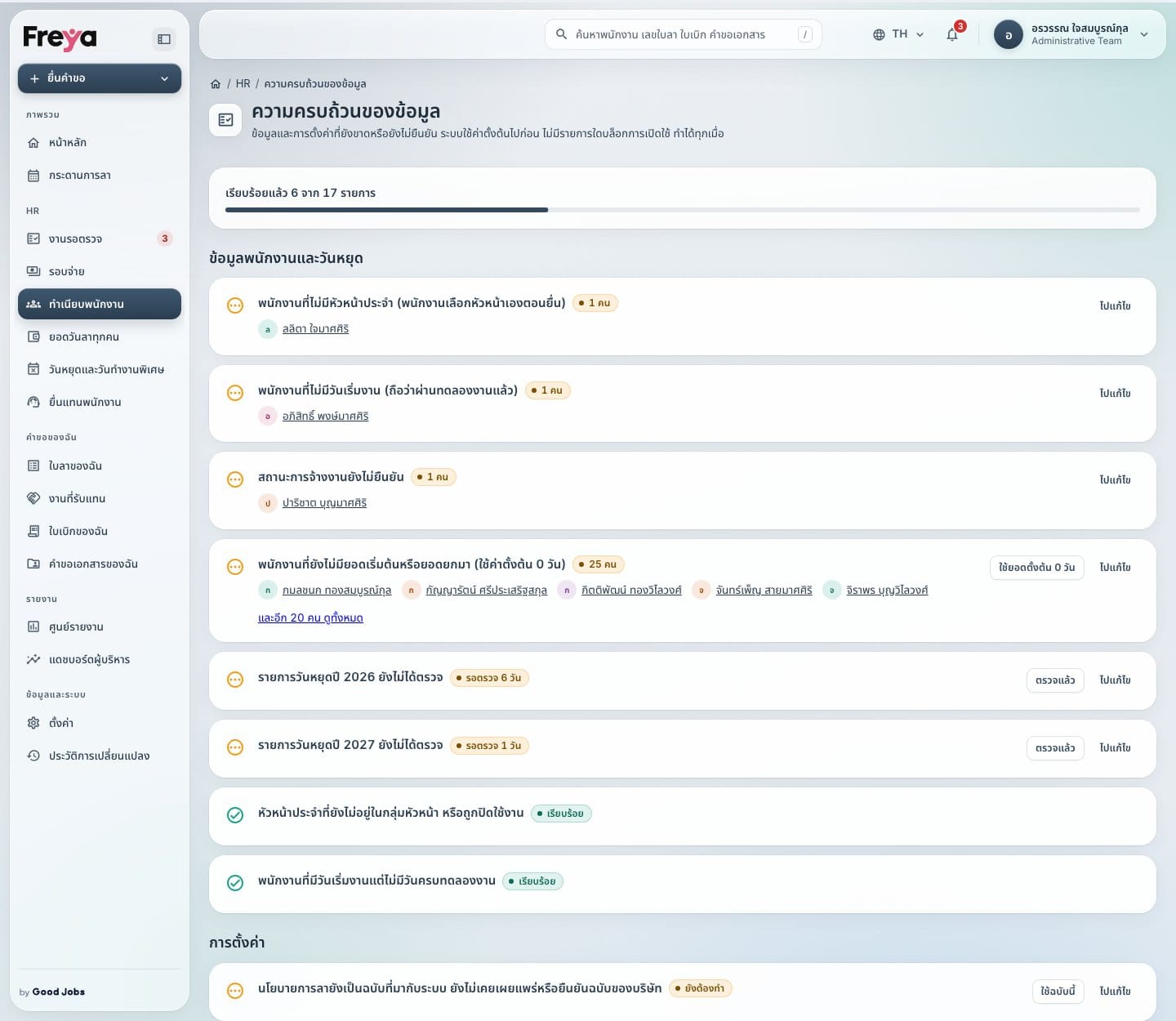
- The setup checklist, showing what has not been set
- The document desk, split into new, taken by you and closed
- Payout rounds for claims (accounts)
- The change history for the whole system
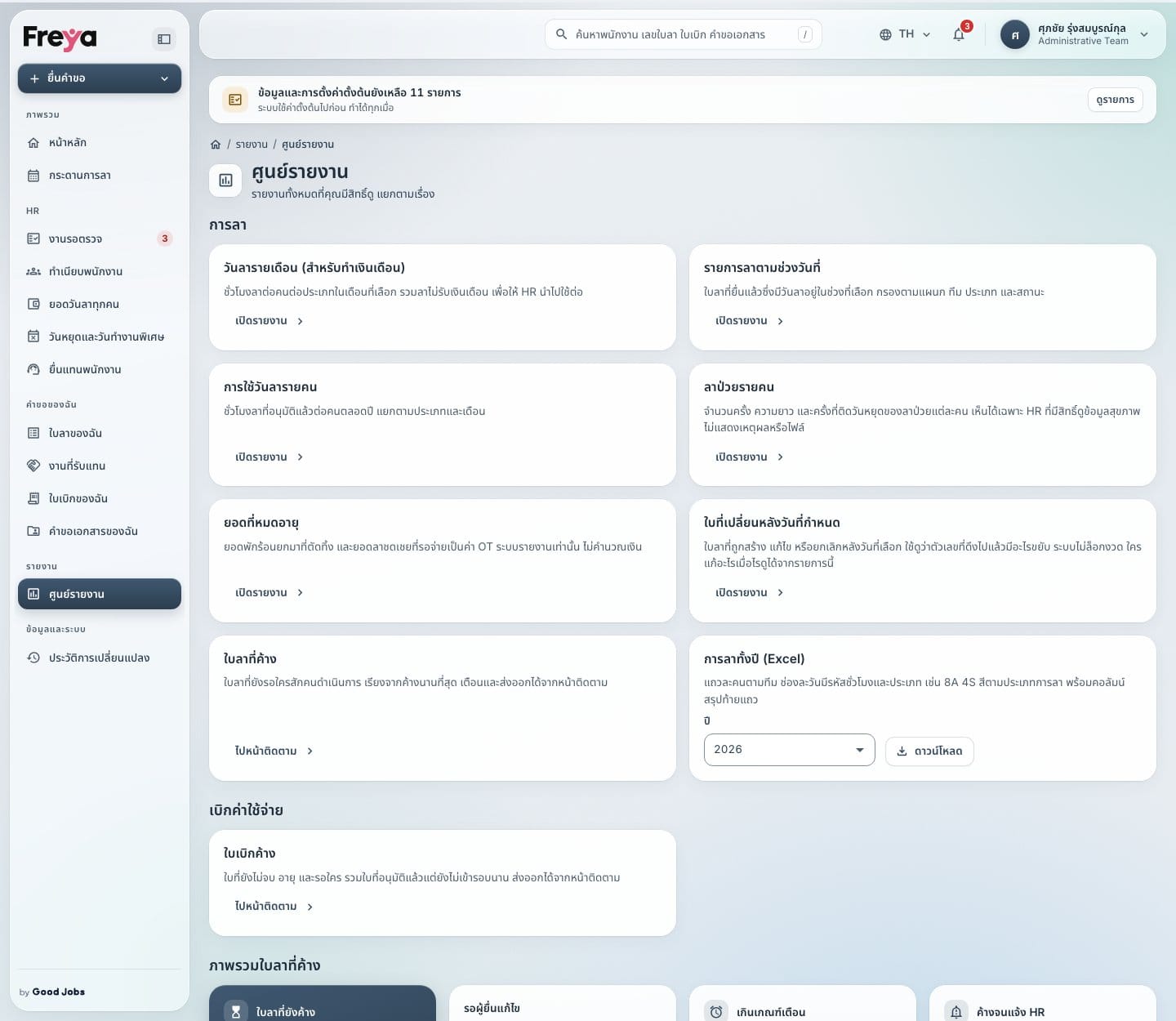
Downloads and reports
- The year's leave as Excel, one row per person and one cell per day, from the board or the report centre
- Monthly leave per person per type, unpaid leave included, for payroll
- Leave by date range, pending requests, leave used per person, expired balances, and requests changed after a given date
- Sick leave per person, open only to HR staff allowed to see health data, without reasons or files
- Five expense reports, exported to Excel or CSV
- Three document request reports
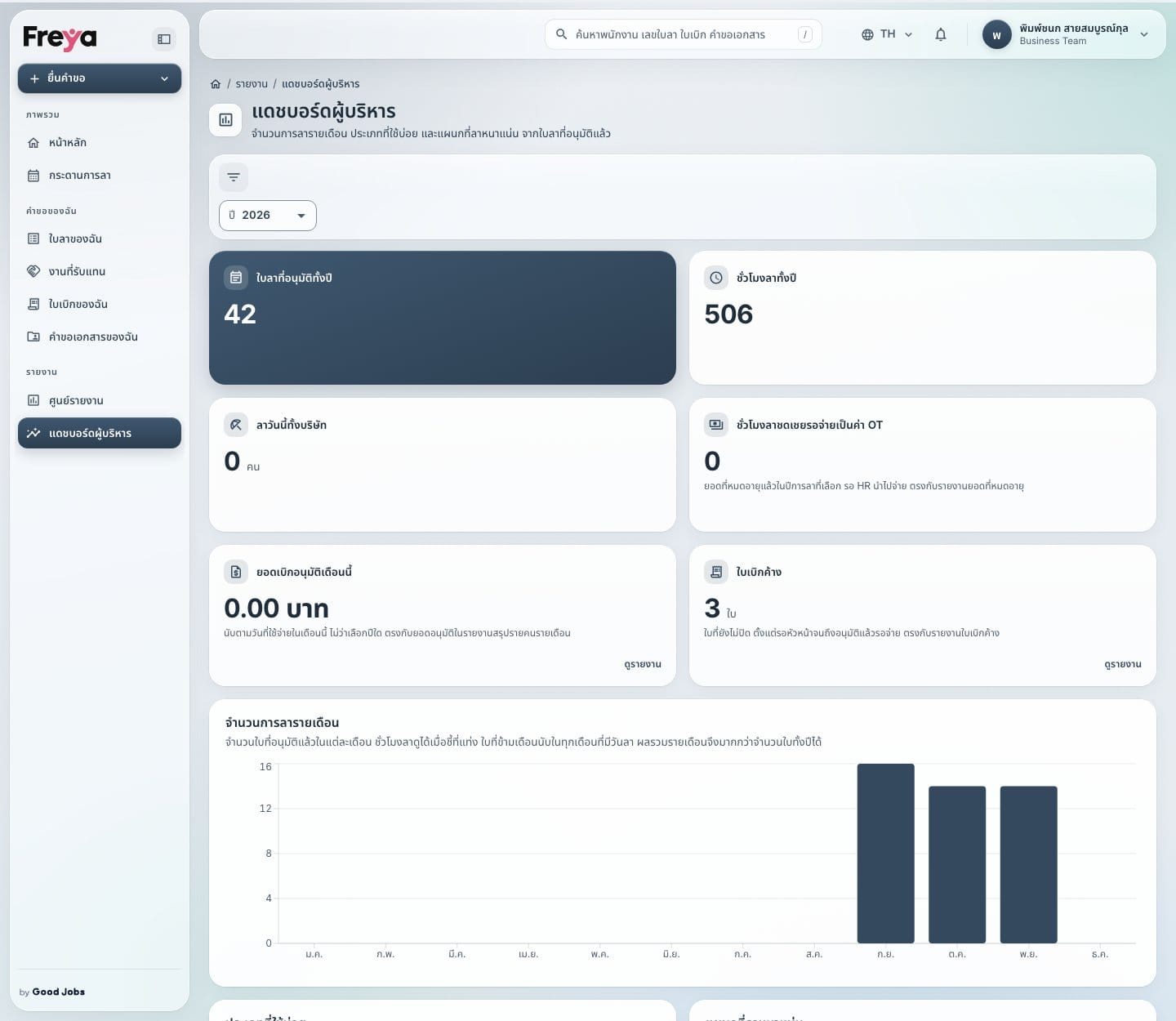
- The executive dashboard
Real screens from the system
What you get with Freya
- Parts included
- Leave and the staff directory from day one. Expense claims and HR document requests, switched on when needed.
- Screens
- A web app for computers and phones, nothing to install
- Sign-in
- A Google or LINE account, no password to remember
- Where it runs
- On servers run by GoodJobs, or installed on your own server
- Ready-made defaults
- 10 leave types, a holiday calendar, working hours and 6 document types, all adjustable
- Existing data
- Import the directory and leave already taken from an Excel file
- Language
- Screens and emails in Thai, with years shown in the Buddhist or Western calendar as each person prefers
- Guides
- A user guide and an admin guide in Thai
- Backups
- Encrypted every night (when it runs on servers run by GoodJobs)
- If you stop using it
- Your data is returned or deleted as you instruct, within 30 days of the contract ending
Who it is for
Software companies and agencies
People work across projects, so a PM can be added as someone to notify and hears straight away who will be off.
Companies with both office and field staff
Office staff sign in with Google, and people without a company email sign in with LINE.
Companies whose sales or service teams claim travel often
Snap the receipt on a phone, the head approves from the email, accounts pay by round.
Companies that pay monthly allowances such as phone allowances
The claim is raised every month, so nobody files the same thing again.
Companies with a one- or two-person HR team
Start on the defaults, import the directory from Excel, and finish the settings later.
Clinics and companies that are strict about staff data
Medical certificates are open only to people with the right, deleted on schedule, and the system can run on your own server.
Frequently asked questions
Do heads have to sign in to approve leave?
No. The approval email has approve and decline buttons that work from a phone. Each link belongs to that head, works once and expires in 7 days. The request then moves on to the HR check queue in the system.
Can leave types, quotas and holidays follow our own policy?
Yes. Freya starts with 10 leave types and a holiday calendar, and HR sets quotas, notice periods, the minimum per request, year-end carry-over and holidays without touching code. Policy changes carry a start date, so balances already worked out never shift without anyone knowing.
Can staff without a company email use it?
Yes. HR sends an invitation link, the employee links their LINE account and signs in with LINE from then on. People with a Google account sign in with Google. Only people in the company's staff directory can get in.
Who can see medical certificates and sick leave reasons?
Leave reasons are seen only by the requester, the approvers and HR. Medical certificates open only for the person who filed the leave and HR staff given that right, and every time a file is opened it is logged. The leave board never shows reasons or attachments, and medical certificates are deleted on their own when the retention period ends.
Where is employee data kept?
Your choice: on servers run by GoodJobs, or on your own server. With GoodJobs, the data sits in a data centre in Malaysia and is backed up every night with encryption. The data belongs to your company, and GoodJobs does not use it for its own purposes. The details are in our privacy policy.
Does Freya do payroll or time attendance?
No. Freya handles leave, expense claims and HR letters. It works alongside the payroll system you already have: take the monthly leave report (unpaid leave included) and the payout round Excel file into payroll.
Want to know how well Freya fits your leave policy?
Tell us how many people you have, how leave requests come in today, and which leave types you use. We will tell you how much of your current policy can be set up as it is, and which part to start with. Or try the demo first: sign in as an employee, a head, HR or an executive. Everything in the demo is made up, so feel free to try anything with made-up data.